GitButler TUI
Inspect and edit your GitButler workspace from interactive terminal UIs.
Use but tui when you want a live, keyboard-first GitButler workspace in your
terminal. It opens an interactive view of your workspace state: unassigned
changes, active branches, commits, files, and the common base.
Run it from a GitButler-managed repository. If the repository has not been set
up yet, run but setup first.
Pick the right terminal workflow
- Use
but tuifor the full workspace view: branches, commits, assigned changes, unassigned changes, diffs, and local history operations. - Use
but diff --tuifor focused diff review without the full workspace editing surface. - Use
but stagewhen you want to assign selected files or hunks to a branch. - Use command mode inside
but tuiwhen you need abutcommand without leaving the TUI. - Use plain CLI commands when you need repeatable output for scripts, agents, or logs.
What you can do
In the full workspace TUI, you can:
- Inspect unassigned changes, branch lanes, commits, and file-level changes.
- Open a details pane for the selected branch, commit, file, or hunk.
- Create commits and empty commits.
- Create branches.
- Move commits or branches.
- Rub changes into a branch or commit.
- Mark multiple commits and act on them together.
- Reword commits or branch names.
- Discard local work after a confirmation prompt.
- Undo and redo GitButler operations.
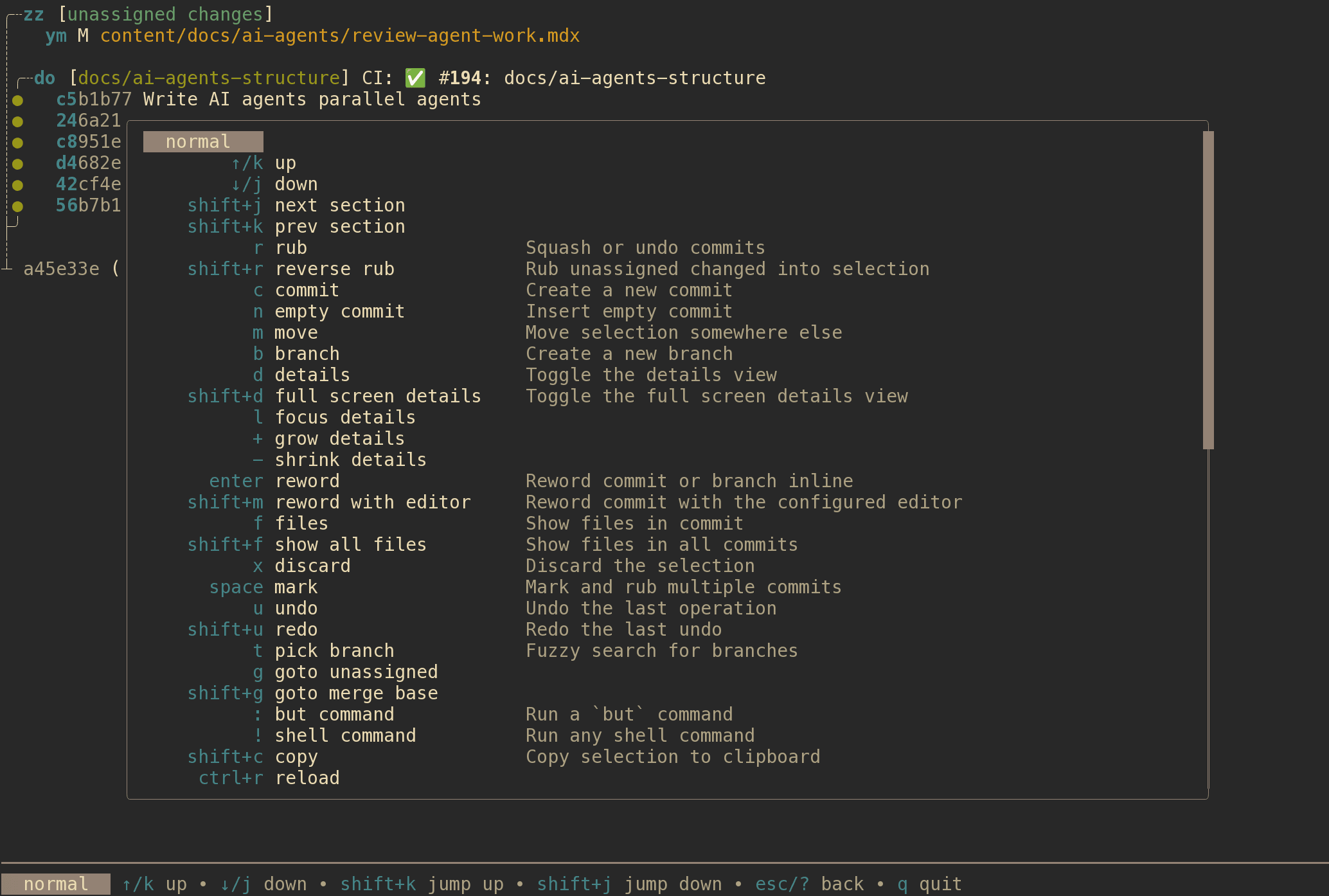
For the complete shortcut list, press ? inside the TUI. The help popup is
generated from the current keybindings, so it is the source of truth.
Move around
Most navigation uses Vim-style keys, with arrow keys where they make sense.
j/kmove down and up.Shift+j/Shift+kjump to the next or previous section.gjumps to unassigned changes.Shift+gjumps to the common merge base.topens the branch picker.Escbacks out of the current mode.qquits.
The hotbar at the bottom shows the most useful keys for the current mode.
Inspect changes
Select a branch, commit, file, or hunk, then press d to open details. The details pane shows commit metadata and diffs for the selected row.
dtoggles the split details pane.Shift+dtoggles full-screen details.fshows files in the selected commit.Shift+fshows files across all commits.lfocuses the details pane.hreturns focus to the status list.+and-resize the split details pane.- In details mode,
j/kmove between hunks. - In details mode,
Shift+j/Shift+kscroll. - In details mode,
rstarts rubbing from the current hunk. - In details mode,
Shift+ccopies the current hunk.
Change local history
- Press
cto create a commit from the selected unassigned or assigned changes. Pressiin commit mode to write the message inline,eto leave it empty, orbto commit to a new branch. - Press
nto insert an empty commit. - Press
bto create a branch. - Press
mto move the selected commit or branch, then choose the destination and pressEnter. - Press
rto rub the selected source into another target. In rub mode,Shift+tkeeps the target message andShift+skeeps the source message. - Press
Spaceto mark commits, then userto rub marked commits together. - Press
Enteron a commit or branch to reword it inline. PressShift+mto reword a commit in your configured editor. - Press
xto discard the selected local work. Destructive actions ask for confirmation. - Press
uto undo the last operation andShift+uto redo it.
GitButler records these operations in the operations log, so you can also inspect and recover with but oplog, but undo, and but redo.
Use command mode
Use command mode when you want the TUI to stay open but need one command.
:runs abutcommand. For example, typebranch listrather thanbut branch list.!runs an external command. It does not run through your shell, so shell syntax like pipes, redirects, built-ins, and&&needssh -c '...'.Ctrl+rreloads the workspace state.
After the command finishes, press Enter to return to the TUI. Successful
commands reload the workspace state. Failed commands return with an error.
Use the diff TUI
but diff --tui opens a smaller TUI focused only on
diffs. It has a file list on the left and a diff pane on the right.
j/kmove through files in the file list.h/l/Tabswitch panes.- In the diff pane,
j/kscroll one line. SpaceorPageDownscrolls down a page.PageUpscrolls up a page.qquits.
You can make but diff use the TUI by default:
Use --no-tui for a one-off plain diff:
Stage hunks interactively
Run but stage without file arguments to open the hunk
picker. This is the most precise way to assign only part of a file to a branch.
If you have one active branch, GitButler uses it. If you have several active branches, GitButler asks which branch to stage to first. If you have no branches, GitButler creates one with a generated name.
The stage picker starts with all hunks selected. When you confirm, selected hunks are assigned to the target branch and deselected hunks are explicitly left unassigned.
j/kmove through files or hunks, depending on the active pane.h/l/Tabswitch panes.Spacetoggles the selected file or hunk.aselects all hunks.ndeselects all hunks.PageDown/PageUpscroll the diff pane.sorEnterstages the selected hunks.qorEsccancels.
After staging, commit only the assigned changes with:
Without --only, but commit also includes eligible unassigned changes for that branch.
Last updated on